

We have a range of Frequently Asked Questions (FAQs) to assist with you with using the eCoC portal.
Registering and managing your account
You will first need to contact Consumer and Business Services (CBS) regarding recognition of interstate licences and applying for Automatic Mutual Recognition (AMR) in South Australia.
CBS Licencing
Email: occupational@sa.gov.au
Phone: 131 882 and press 4
Once you have received confirmation of your licencing requirements from CBS, please call us on 8429 3394 so we can assist with registering you onto the eCoC portal.
If the expiry date or licence number submitted on the application does not match the date stored on the CBS Licence Database, the application will be flagged for review.
If your application has been rejected, please feel free to contact us on 8429 3394.
For any discrepancies with licence details, we recommend contacting CBS Licencing.
Contact the OTR on 8429 3394 and provide your licence number, expiry date and new email address.
The email address is the unique identifier for an account in the eCoC system, and the OTR is required to validate the account holder before any changes are made to emails. This is to protect your ownership of your eCoC account. The OTR strongly recommends the use of a personal, private email address for all accounts containing your personal worker's licence.
Go to Sign In and click on Click Here To Reset Your Password.
Enter your email address and click Reset Password.
If you follow these instructions and do not receive an email, please call us on 8429 3394.
If you have recently updated your existing PGE licence through CBS, your new licence conditions will not be automatically added to our system.
Please call us on 8429 3394 and we can ensure these changes are reflected on the eCoC portal. Alternatively, you can email us at otr.ecoc@sa.gov.au and we will update your details accordingly.
Yes, adding a licence to your existing account gives you access to multiple licences under a single login.
Note that the eCoC Portal will only allow one licence on an account to contain workers conditions.
Separating licences is more complex and can result in the loss of eCoC history. If you are unsure of what the best option is, call us on 8429 3394.
Yes, if you have separate profiles for your worker's and contractor's licences, you can merge these together to enable access to both licences under a single login. Prior to merging accounts, please ensure that:
- there are no outstanding draft eCoCs
- you have the username and password for each licence
- only one licence contains workers conditions
- you are listed as the licence holder or a director against each licence.
To merge accounts, select the Add/Merge Licence button under My Licences, and follow the prompts.
Creating an eCoC
There are 3 options when selecting which section to use for creating an eCoC:
1. Use one of my licenses for the contractor's section
Select this option if you are both the worker and contractor for the job, and hold both licence conditions under the same eCoC profile
2. Use my employing contractors licence for the contractor's section
Select this option if a contractor employs you for a job. This will enable you to select your employing contractor when creating an eCoC.
3. I am not employed by a contractor for this job
Select this option if you have not been contracted for the work and you aren't receiving financial reimbursement. This option would also be applicable if you are a salaried employee working on installations owned by your employer.
Check your employer has correctly added you as a worker. They will be able to verify this via the My Workers tab on their eCoC registration.
If you are unable to add the worker, this means that:
- the worker is not registered on the portal, or
- the information provided (licence number and email address) does not correspond with their eCoC login details. If you still encounter issues, please call us on 8429 3394.
You should not add a supervisor's licence from Consumer and Business Services to the eCoC portal, and the system will display error messages if you attempt to do so. Instead, the eCoC portal allows for Contractors licences to nominate and create ‘Authorised Persons’, distinct user logins which allow for admin staff and/or supervisors to access and, where appropriate, sign and certify eCoCs submitted by workers attached to that contractor.
If you are an ‘Authorised Person’ for a contractor, remember that the login details will be separate from your personal worker's or contractor's licenses, a unique email address will be required for these accounts.
Submitting an eCoC
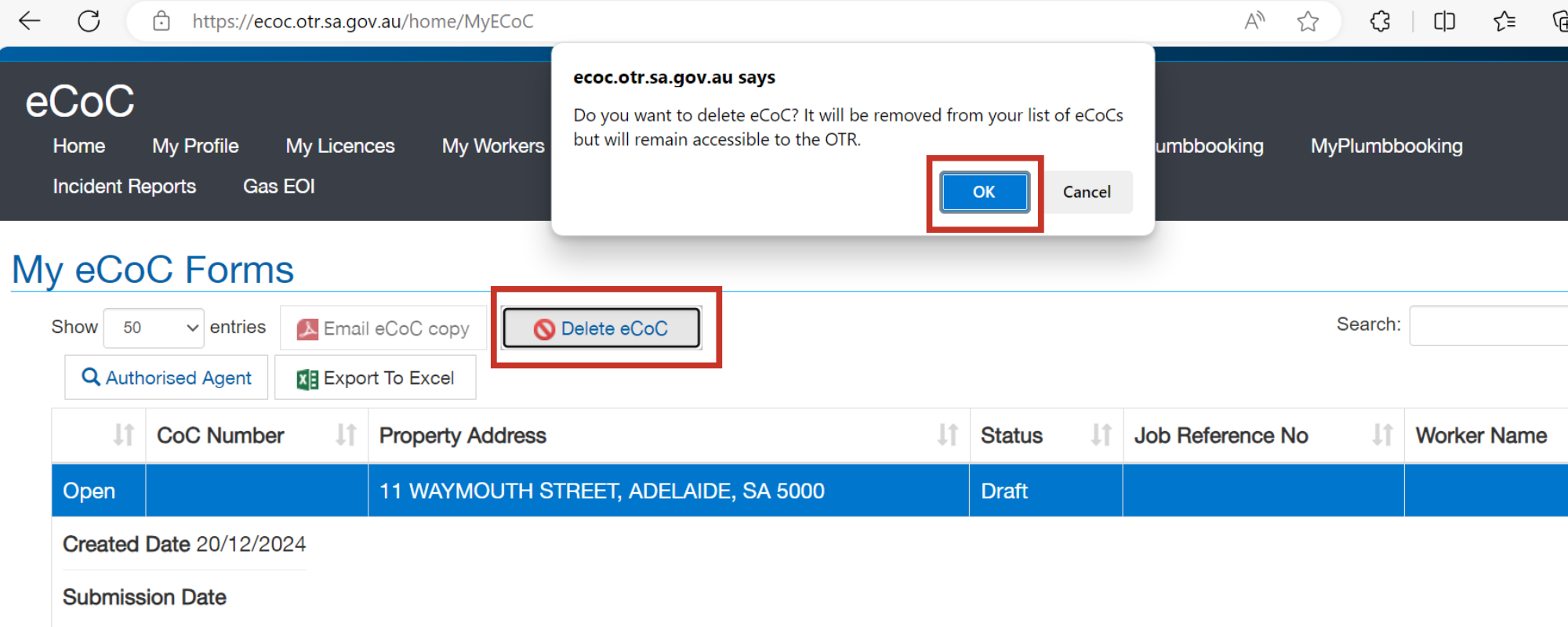
Yes. To delete an eCoC in draft status, follow these instructions:
- select My eCoCs
- select the eCoC you wish to delete by clicking on the address - this should highlight the field in blue.
- select Delete eCoC then press OK.
Once an eCoC is submitted, it becomes a legal document and cannot be altered.
If you've submitted an eCoC with errors, please follow these steps:
- Submit a new eCoC with the correct information.
- In the Job Details section of the new submission, note the original eCoC number and advise that this is a replacement.
We are currently developing a Submission Preview option, further information will be provided in the near future.
Addresses are pulled from Location SA using legal title address data and do not always match addresses used in online map services.
Try entering the start of the address, for example, if you are searching for 11 Waymouth Street, ADELAIDE SA 5000, enter 11 Waymouth and click Verify.
If your specific address does not appear as an option, click Back to Search to refresh the field. Alternatively, you can click the Installation Address Couldn’t be found tick box to manually enter the address details.

Attachments and printing
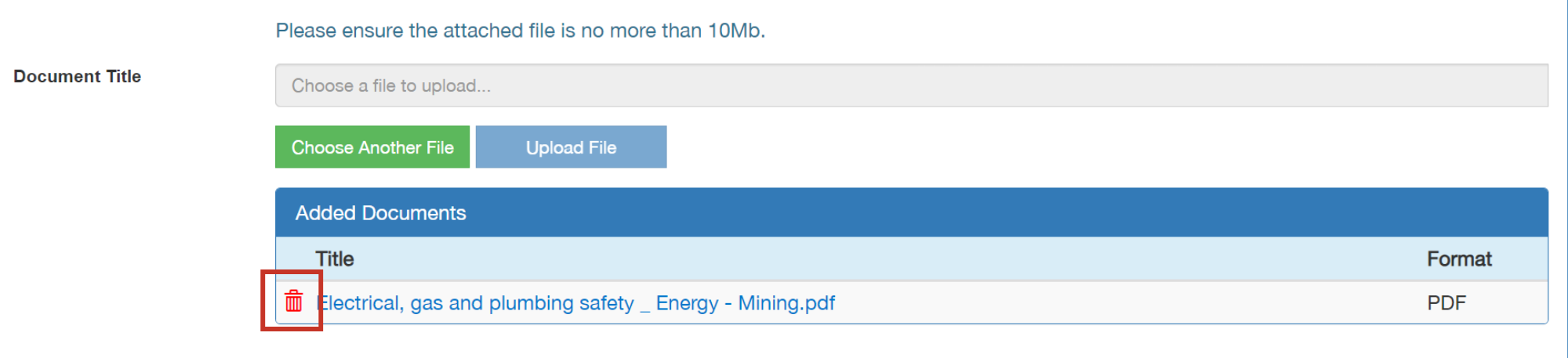
Attachments to an eCoC record can be deleted while in Draft status. Once the document has been Certified or Submitted these attachments can no longer be deleted.
To delete an attachment, go to the Added Documents section on the Job Details page, click the Recycle Bin icon and press OK.
We are currently developing this function, further information will be provided in the near future.
You must hold the relevant worker conditions on your licence to create and submit eCoCs.
If you are registered under a contractor’s licence which does not hold worker conditions your access will be denied.
You can check your account permissions under My Licences via the eCoC portal.
Attachments to eCoC's are not automatically distributed to the customer. Any documents you wish to provide to the customer need to be sent separately, either via email, in person or via post.
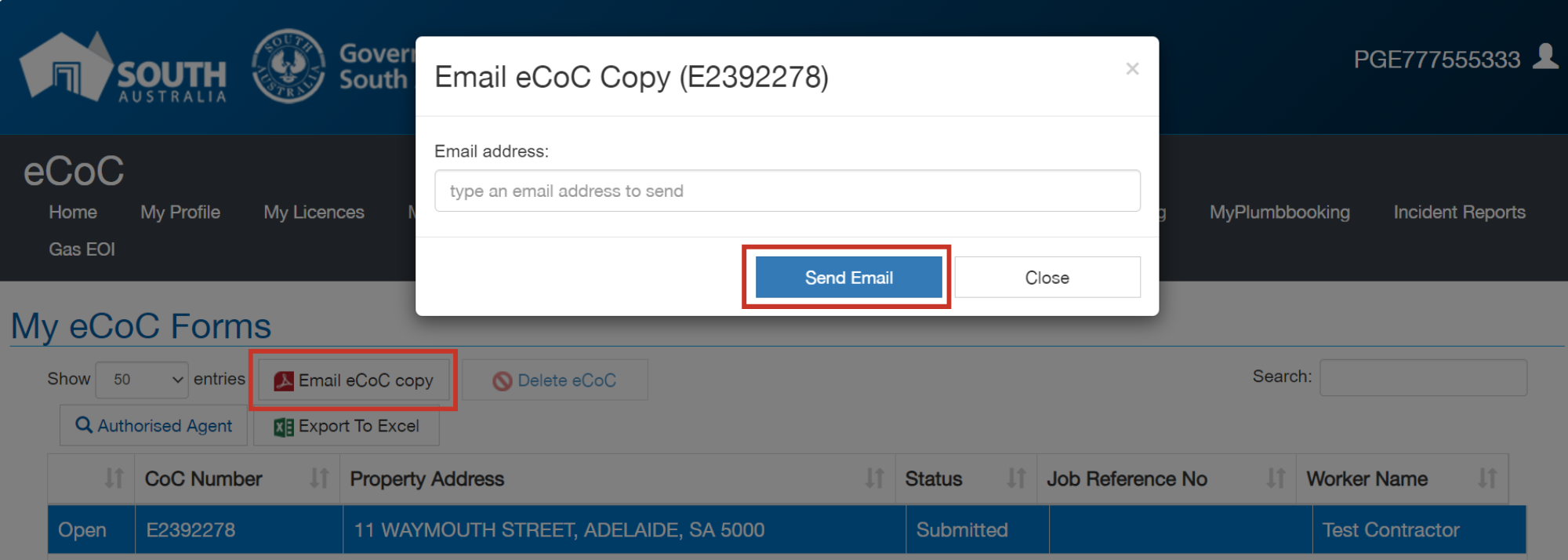
To print an eCoC you will need to email yourself a pdf copy via the online portal, follow these instructions:
- select My eCoCs
- then select the eCoC you wish to print by clicking on the address. This should highlight the field in blue.
- select Email eCoC copy, enter your email address and click Send Email.
Once you have sent the copy to your email address you can then print the pdf.
Contact eCoC support
When emailing eCoC support with queries regarding licence registration, permissions or account details, please include a reference to your relevant PGE and/or BLD licence.
Phone
- 8429 3394 (Monday to Friday, 8.30 am to 4:30 pm).
During busy periods you may be directed to voicemail, eCoC support staff will respond to all voicemails as soon as possible.